
Appearance
Products Administrator
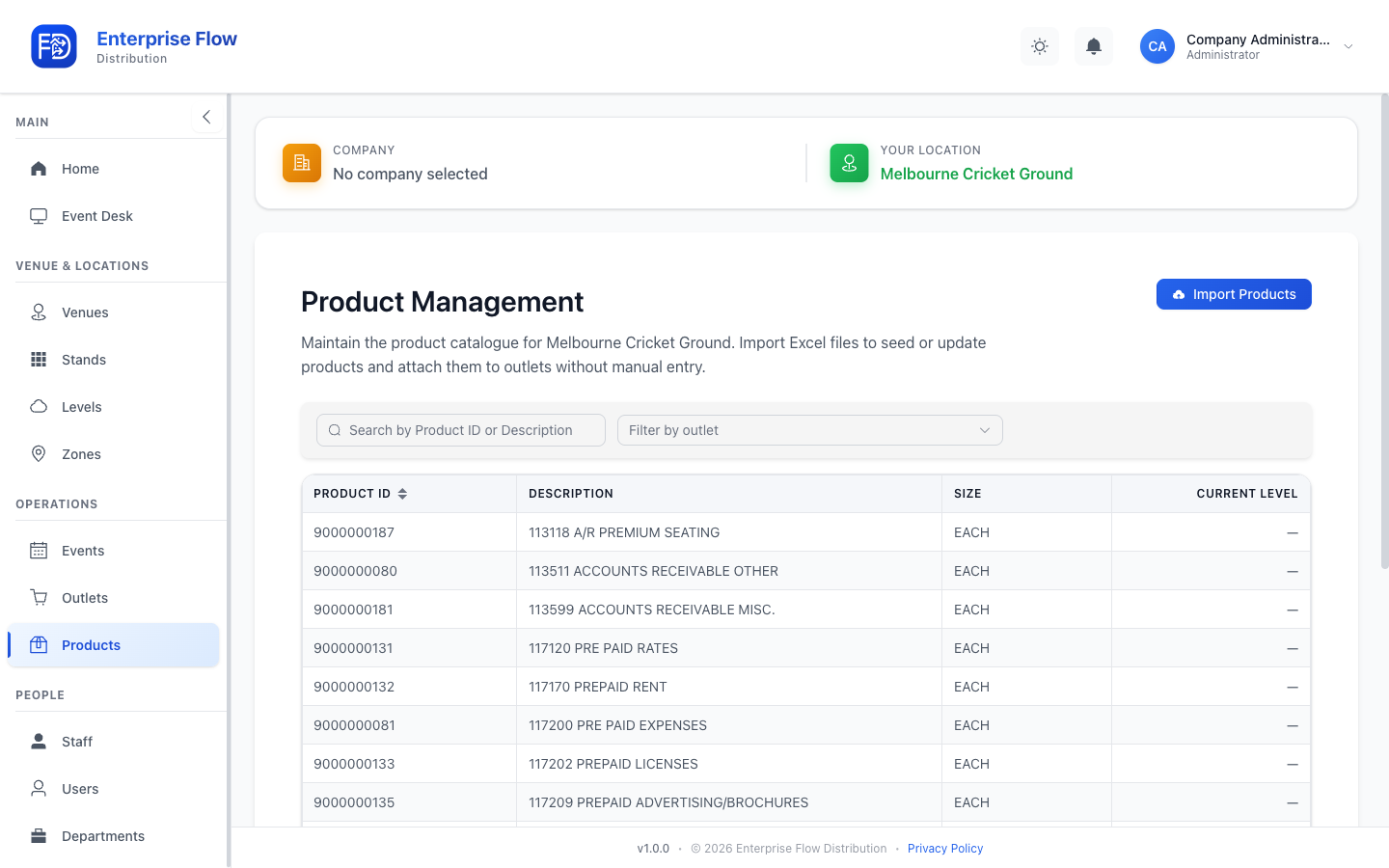
Products are the items that get ordered, distributed, and tracked through Enterprise Flow — everything from beverages and food to merchandise and supplies.
Accessing Products
Navigate to Product Management in the sidebar.
Creating a Product
- Click the Add Product button.
- Fill in the details:
- Name — The product's display name (e.g., "Carlton Draught 425ml")
- Department — Which department this product belongs to
- Unit — The unit of measurement
- Click Save.
Editing a Product
- Find the product in the list.
- Click Edit.
- Update the desired fields.
- Click Save.
Deleting a Product
- Click Delete on the product row.
- Confirm the deletion.
WARNING
Deleting a product does not remove it from historical order records.
Importing Products
Bulk-load a venue's catalogue from a spreadsheet instead of adding products one by one.
Two-file import
Most imports use two files — a catalogue file and a cost centre file — matched on a join key. A single-file import is also supported when the config needs no join key.
The import runs in two steps:
- Preview — Upload your files. Enterprise Flow prepares a diff in the background and shows you what will be created, updated, or deactivated before anything is written.
- Apply — Confirm the preview. The import is applied in the background, broadcasting live stage progress as it runs, and you receive an email with the results when it finishes.
Sizes
Sizes are handled per size, and each size can be active or inactive. The import only adds or reactivates sizes — it never deactivates a size that's missing from the file, because supplier exports often omit purchase sizes. Turning a size off is a manual choice on the product form.
When an import brings in a product with only a single size, that product is flagged with a needs sizes review marker so you can confirm its sizing.
Deactivation
Products that are absent from the file are deactivated, but this is scoped to the product group being imported into — importing one group never deactivates products in another. A target product group is required for a scoped import.
Tips
- Use clear, specific product names — your staff will see these on the mobile app when placing orders.
- Assign products to the correct department to ensure the right staff can order them.