
Appearance
Staff Administrator
Staff members are the people who work on the ground during events — runners who deliver stock orders and approvers who review and approve them. Staff access the platform through the mobile app.
Accessing Staff
Navigate to Staff Management in the sidebar.
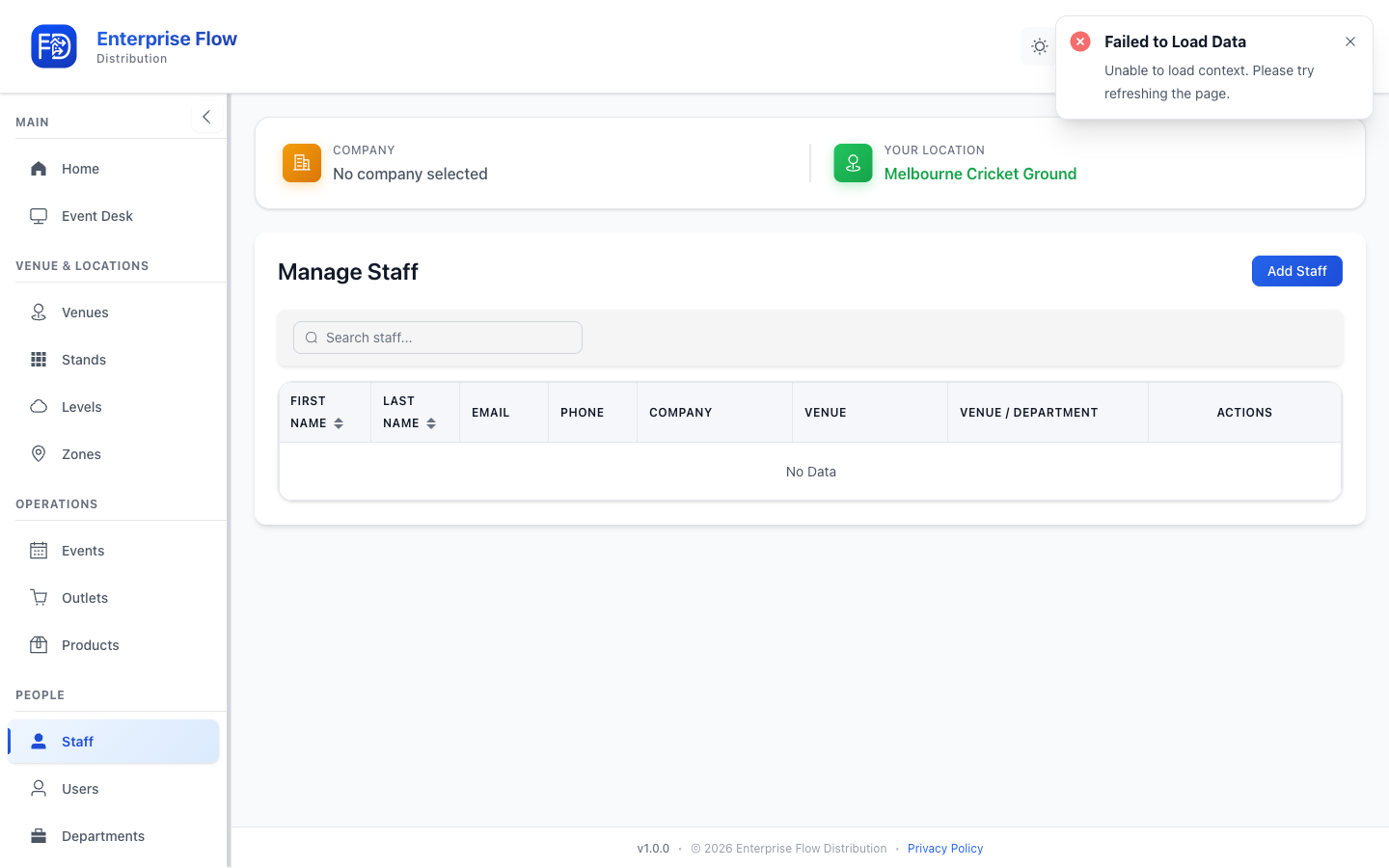
Creating a Staff Member
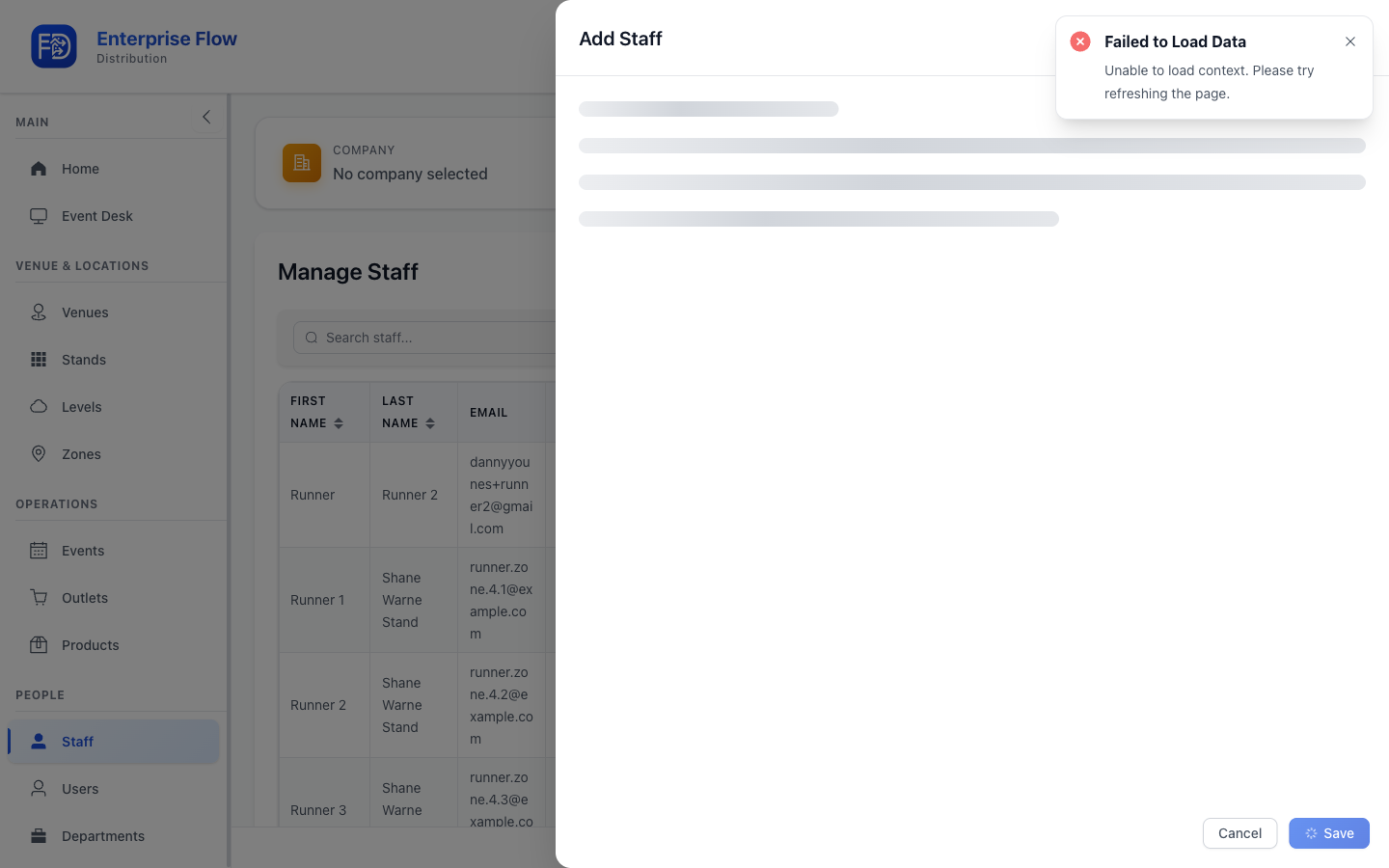
- Click the Add Staff button.
- Fill in the details:
- Name — Full name
- Mobile Number — Used for OTP login on the mobile app
- Department — Which department(s) this staff member works in
- Permissions — Whether they can deliver stock (runner) and/or approve orders (approver)
- Click Save.
Editing a Staff Member
- Find the staff member in the list.
- Click Edit.
- Update the desired fields.
- Click Save.
Deleting a Staff Member
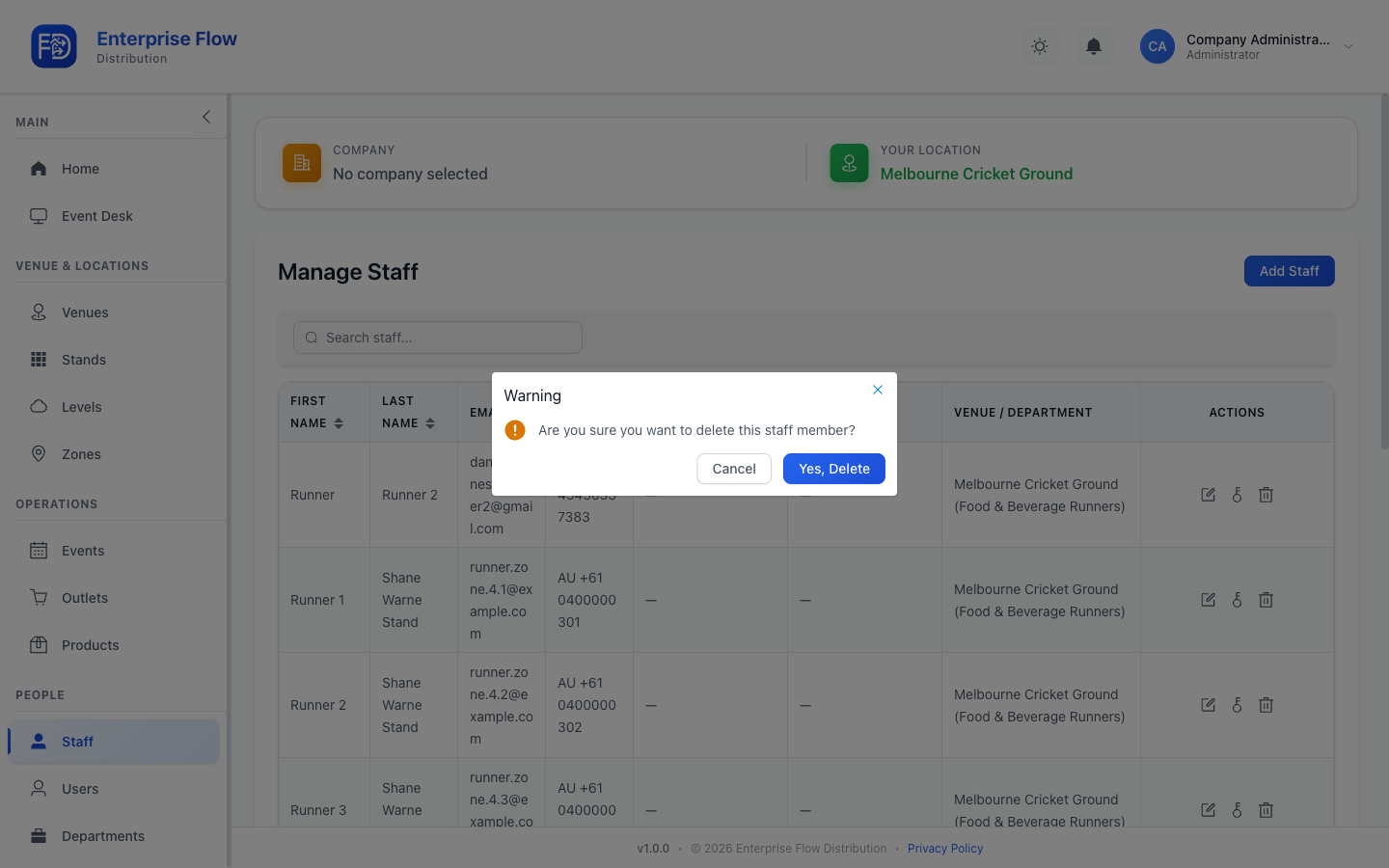
- Click Delete on the staff row.
- Confirm the deletion.
Runners vs Approvers
Staff permissions determine their role in the mobile app:
| Permission | Mobile App Role | What They Do |
|---|---|---|
| Can deliver stock | Runner | Create and deliver stock orders |
| Can approve orders | Approver | Review, approve, or reject orders |
A staff member can have both permissions, allowing them to act as either a runner or an approver.
Tips
- Make sure each staff member's mobile number is correct — it's their login credential for the mobile app.
- Assign staff to the departments they work with so they only see relevant products.