
Appearance
Stands Administrator
Stands represent distinct sections within a venue — such as grandstands, pavilions, or wings. They help organise where outlets are located.
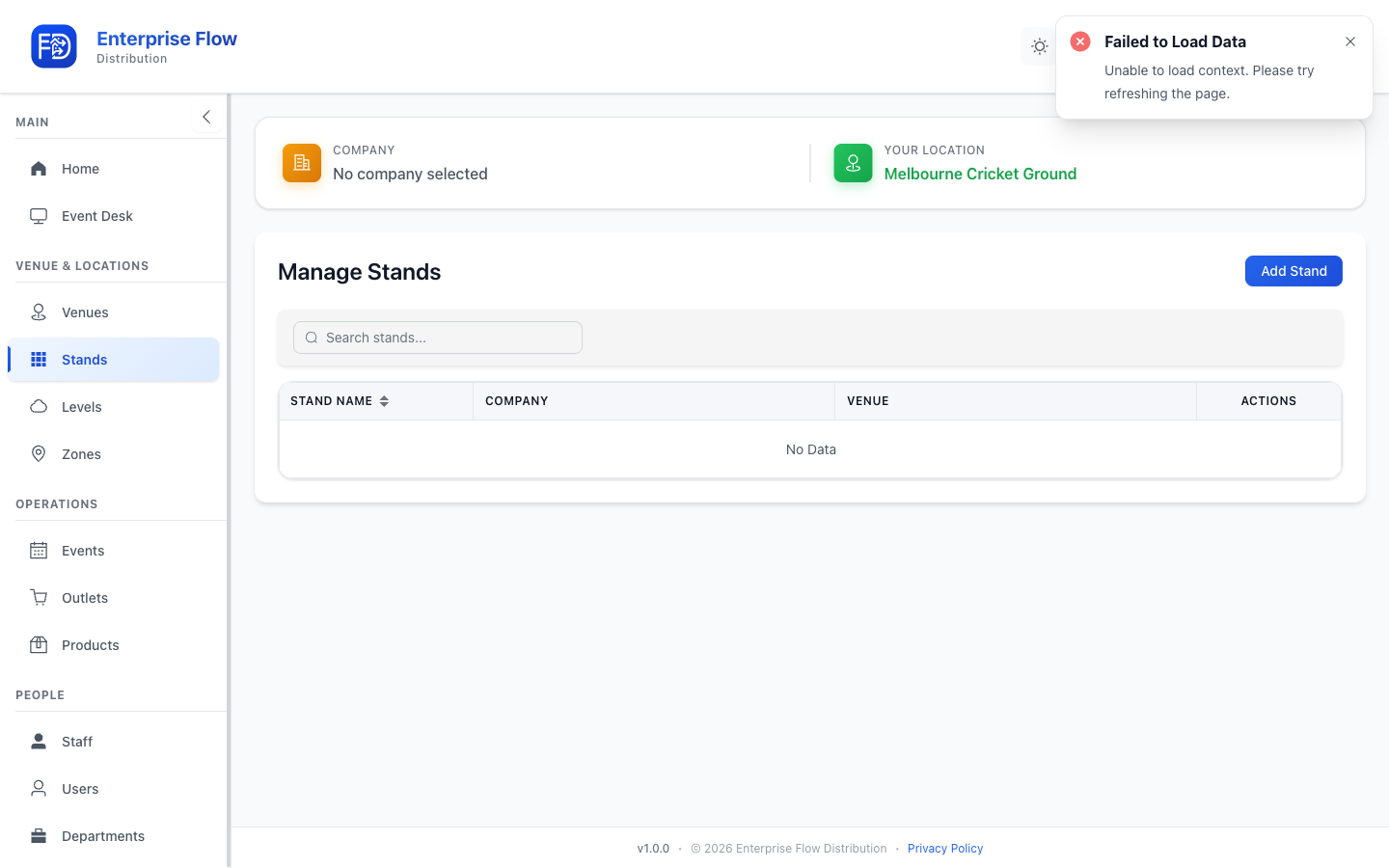
Accessing Stands
Navigate to Stand Management in the sidebar.
Creating a Stand
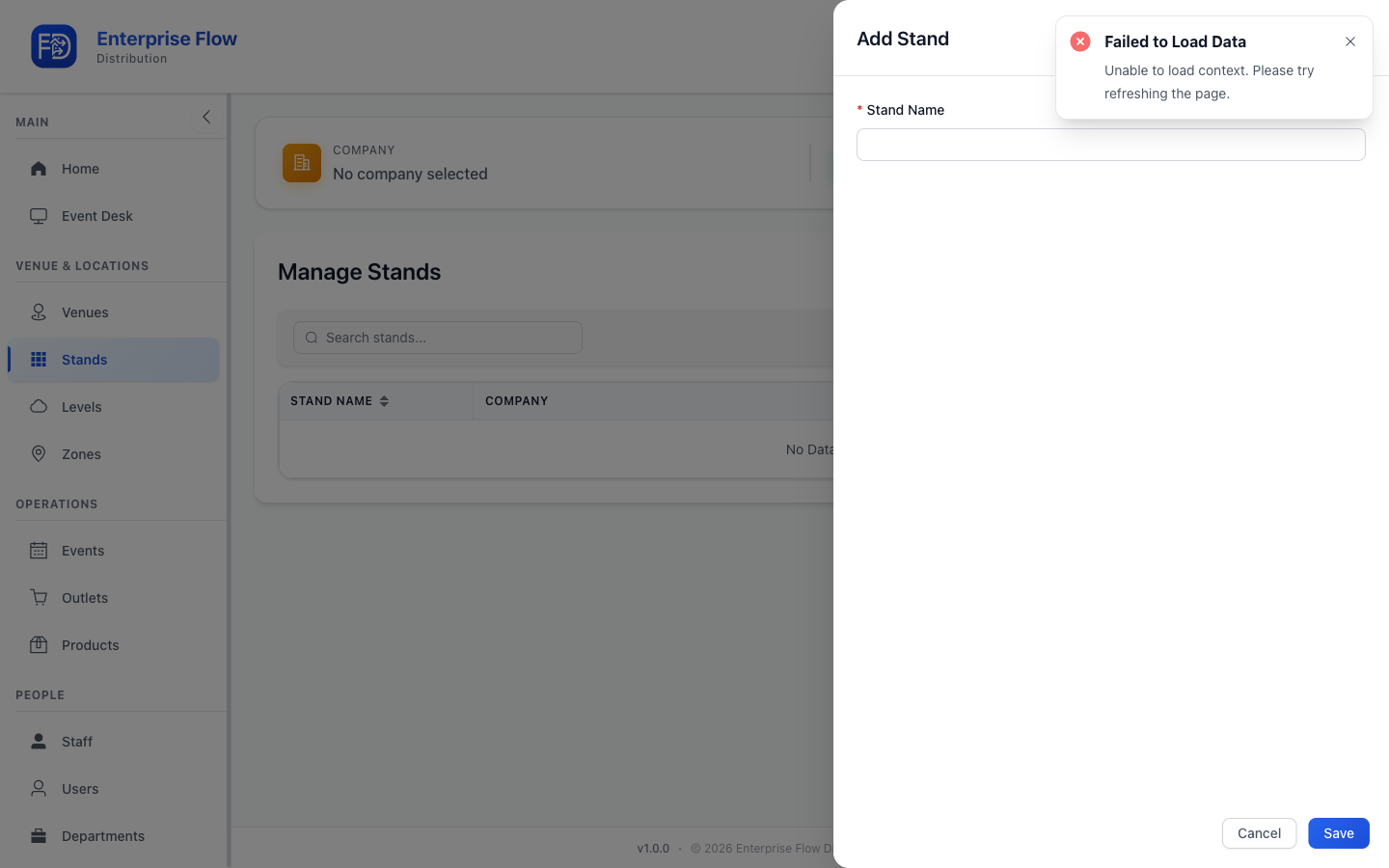
- Click the Add Stand button.
- Fill in the details:
- Name — The stand's display name (e.g., "Northern Stand")
- Venue — Select which venue this stand belongs to
- Click Save.
Editing a Stand
- Find the stand in the list.
- Click Edit.
- Update the desired fields.
- Click Save.
Deleting a Stand
- Click Delete on the stand row.
- Confirm the deletion.
Tips
- Stands are children of venues — you must create a venue before adding stands.
- Use descriptive names that your staff will recognise on event day.